BRACU Launchpad - User Manual
Verified & Updated for Spring 2026 Semester
Welcome to BRACU Launchpad, your all-in-one companion for managing your academic life at BRAC University. This manual guides you through the various features available in your dashboard.
🚀 Getting Started#
- Login: Access the platform using your university Google account (g.bracu.ac.bd).
- Dashboard: Upon login, you will see your Dashboard, which gives you a quick overview of your today's classes, upcoming exams, and quick links to essential tools.
🎓 Advising Tools#
Located under the "Advising" section in the sidebar, these tools help you plan your semester and academic journey.
📅 Course Planner#
Draft your perfect schedule before advising starts.
Go to Course Planner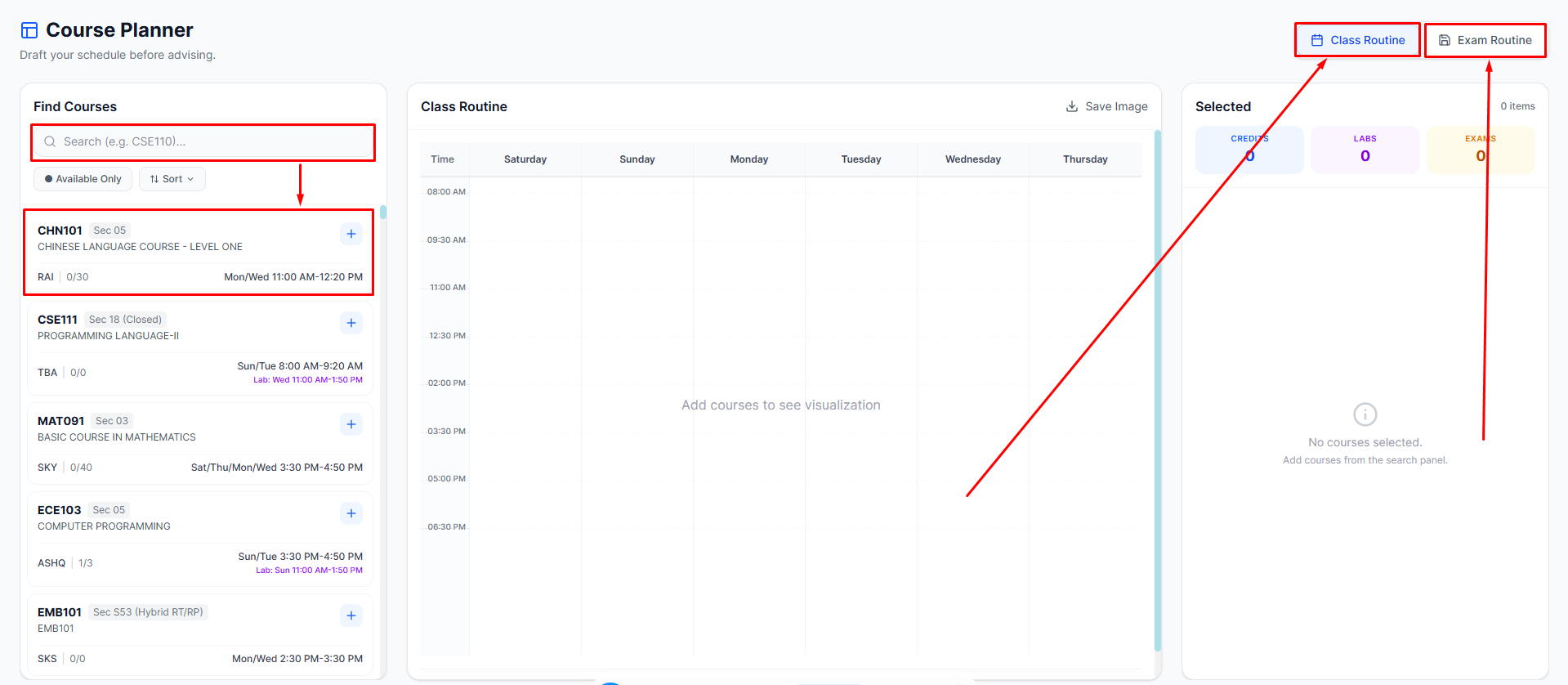 Course Planner Screenshot
- Search Courses: Use the search panel on the left to find courses by code (e.g., "CSE110") or name.
- Filters: Toggle "Available Only" to see sections with empty seats.
- Sort: Sort results by Section, Available Seats, or Faculty name.
- Add to Routine: Click the + button on a course card to add it to your plan.
- The system automatically checks for time conflicts.
- Visual Grid: Your selected courses appear on the weekly routine grid in the center. Both regular class times and Lab slots are visualized.
- Exam Routine: Switch tabs above the grid to view the Exam Routine to ensure no exam dates overlap.
- Save/Download: Click "Save Image" to download a high-quality image of your planned routine.
- Manage Selection: Use the panel on the right to remove courses or check total credits.
🪑 Seat Status#
View real-time seat availability for all courses.
Go to Seat Status Seat Status Screenshot
- Live Interface: Data is fetched live from USIS/Connect.
- Search: Type in the search bar to filter by Course Code, Faculty, Room, or Day.
- Filters:
- Hide Full Sections: Quickly remove sections with 0 seats left.
- Exclude Faculties: Type faculty initials (comma-separated) to hide specific instructors (e.g., "TBA, ABC").
- Views: Toggle between Grid View (card style) and List View (compact table).
🔍 Free Slots Finder#
Find empty classrooms or labs for study or relaxation.
Go to Free Slots Finder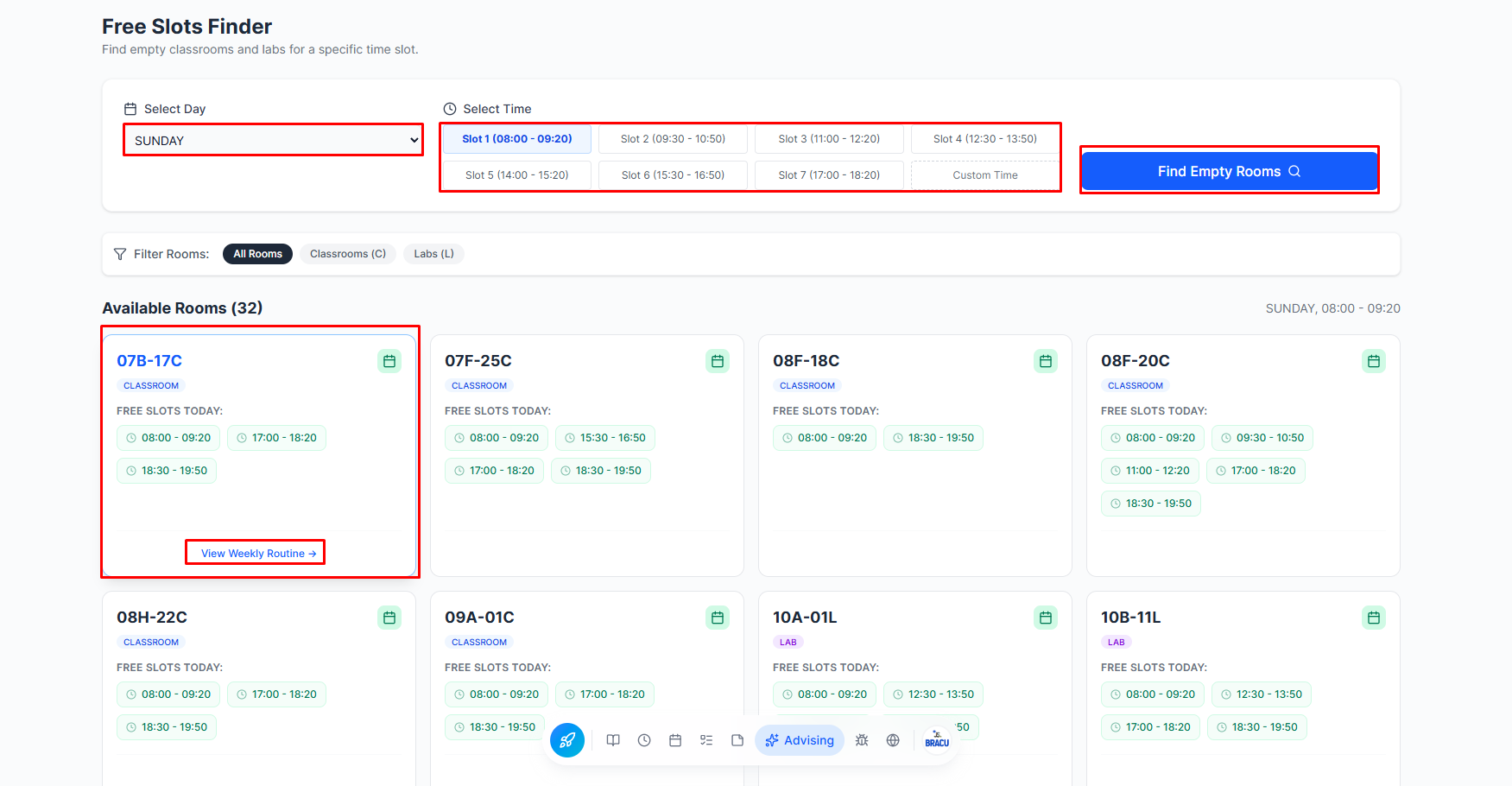 Free Slots Finder Screenshot
- Select Time: Choose a Day and a specific Time Slot (e.g., "08:00 - 09:20") or enter a custom range.
- Search: Click "Find Empty Rooms".
- Filter Results: Filter the list by Classrooms (C) or Labs (L).
- Room Details: Click on any room to verify its full weekly schedule. Green slots indicate free times.
🗺️ Course Sequence#
Visualize your major's path from freshman to senior year.
Go to Course Sequence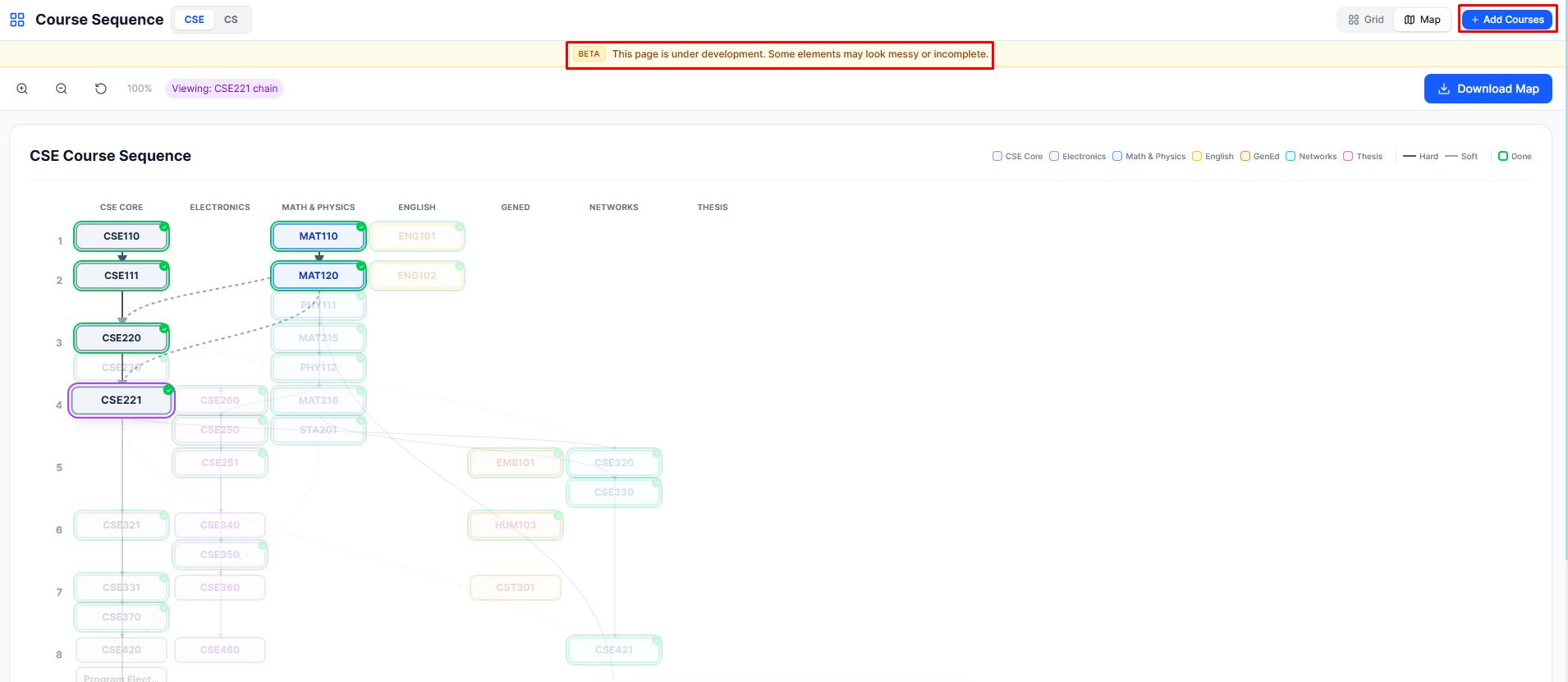 Course Sequence Screenshot
- Select Major: Choose between CS and CSE (if applicable).
- Map View: See a flowchart of courses connected by prerequisite arrows.
- Solid Lines: Hard Prerequisites (Must complete first).
- Dashed Lines: Soft Prerequisites/Co-requisites.
- Grid View: See a semester-by-semester breakdown of standard course loads.
- Track Progress: Mark courses as "Done" or "In Progress" to see your path light up. (Integration with Degree Tracker).
📝 Degree Tracker (Advising Sheet)#
Keep a digital checklist of your completed courses.
Go to Degree Tracker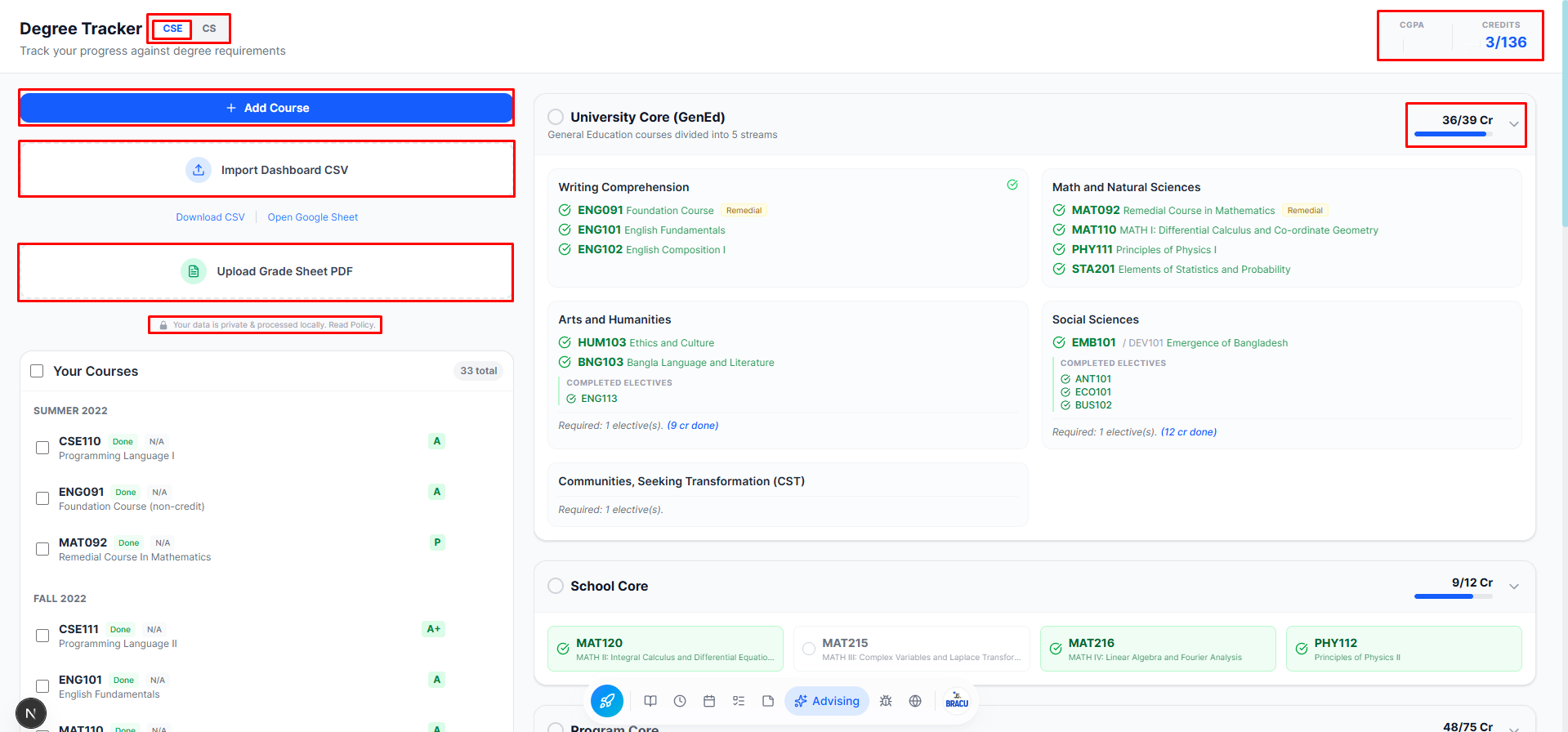 Degree Tracker Screenshot
- Upload Info: You can upload your grade sheet or manually mark courses.
- Progress: View a percentage breakdown of your completed credits vs. total required.
- Categories: Courses are grouped by requirement type (GenEd, Core, Elective, etc.).
📚 Academic Resources#
Access study materials shared by the community and admins.
Go to Academic Resources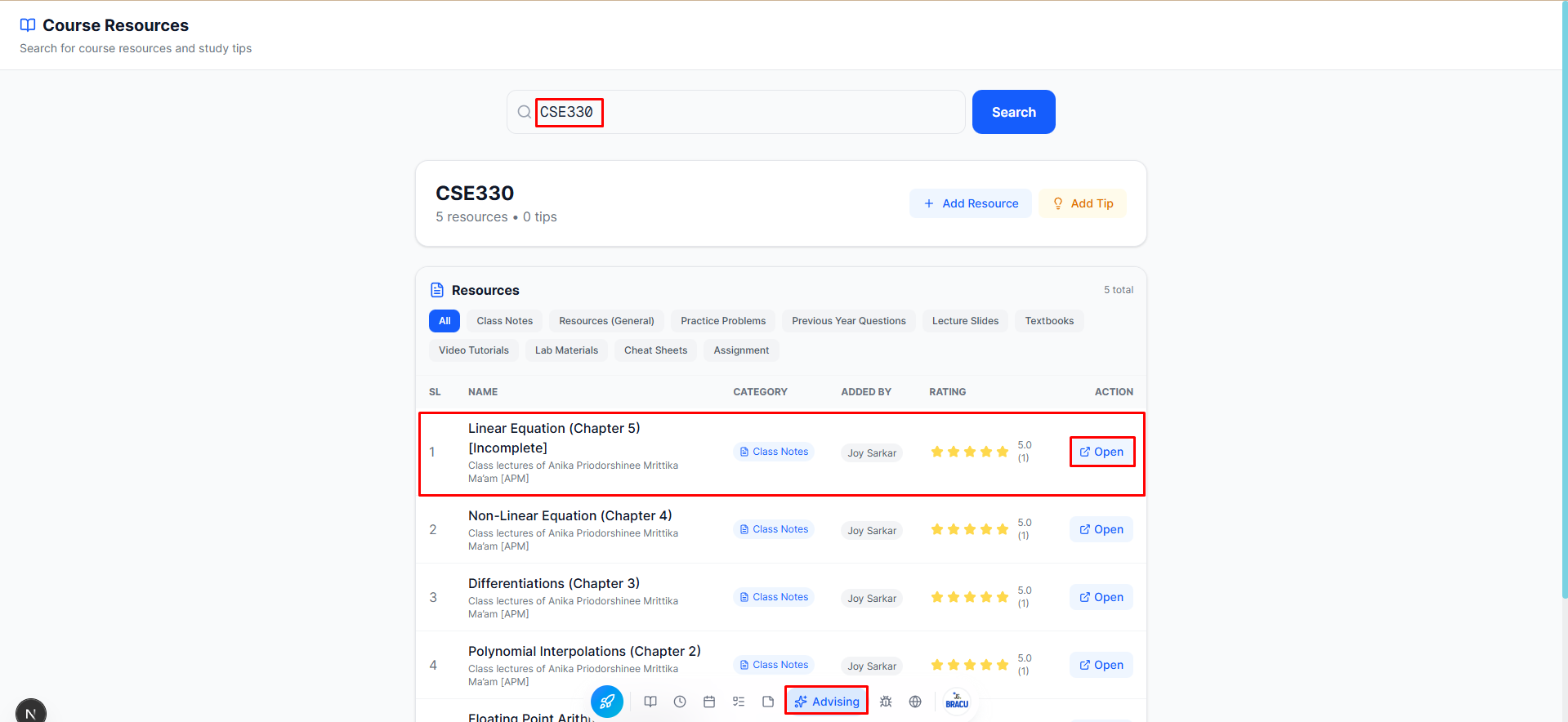 Resources Page Screenshot
- Browse: View a list of resources including Class Notes, Past Questions, Books, and more.
- Filter: Use the category buttons (e.g., Practice Problems, Lecture Slides) to narrow down the list.
- Search: Find specific resources by course code or title.
- Contribute:
- Click "Add Resource".
- Fill in the form (Link, Course Code, Category).
- Submit for review. (Resources added by users require Admin verification).
🗓️ Schedule Management#
Your personal class schedule, always accessible.
Go to Schedule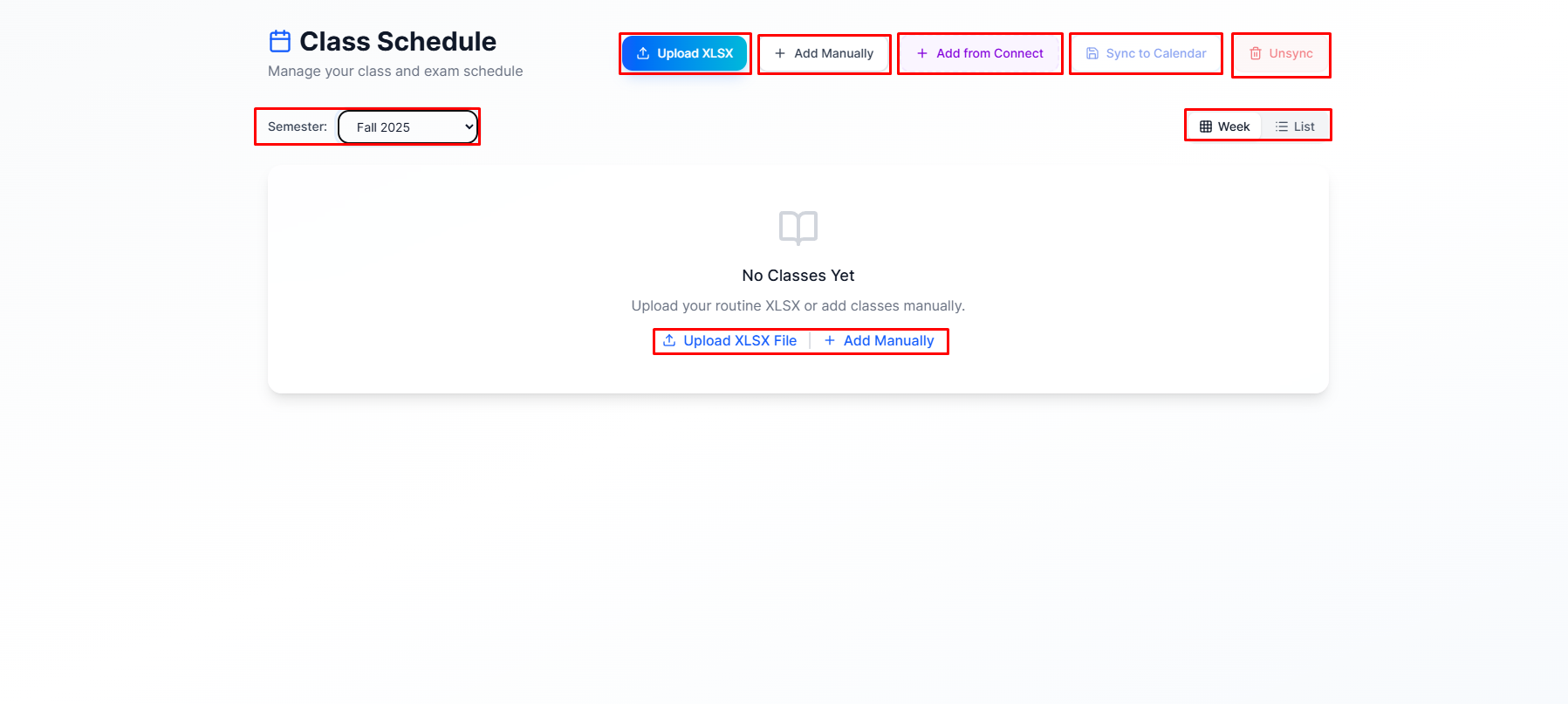 Schedule Screenshot
- View: See your active semester's routine in a weekly calendar view.
- Sync to Google Calendar:
- Click the Sync to Calendar button.
- Choose your reminder preference (e.g., "10 minutes before").
- Your classes will automatically appear on your Google Calendar with room numbers and details.
- Notes: Click on a class to add personal notes or reminders for that specific session.